In my previous post about Pure Blog I said the following.
“…I'm not into comments, so it's a function I don't need. If you have something to say, just email me...”
Within an hour of that post going up I only went ahead and installed Pure Comments. That didn’t last long did it?
It’s very good, works a treat. The email notification isn’t working for me, yet, so I have to log into the app to see if I have comments. That part of it all works. Nice.
I’m not into social media; I’ve tried it, but I didn’t really get into it or like it. I found it too stressful and time-consuming. I have a work and a personal website, the personal, which I hosted using a flat CMS app called Bludit. It was quick, easy to use and very configurable. It’s still a live site here. It’s also mobile-friendly. Not bad.
One day during a server update, I was having a sniff around in the Yunohost catalogue and saw a flat-file blogging app called Pure Blog, and thought that I’d give it a spin.
The installation and setup are a breeze. Be sure to complete the post-install as soon as you have done the main install, ie, you set the user, password and site details. Have a look at the excellent Pure Blog docs for your type of install, as mine is all packaged up by the Yunohost community.
Once installed and you log in to the admin area, you will be up and running in no time. It’s very simple and very straightforward to write and edit content. The app is very well written and easy to use. Being a flat file app, there is no database to piss about with.
Uploading and dropping pictures into your content is simple and straightforward.
This is a blogging app, not an all singing all dancing web building app. It’s a no nonsense, easy-to-use blogging app (hate that word. Blogging. euuk!).
If you are after photo carousels, setting up a shop online or clever stuff, then this is not the app for you. Pure Blog is very configurable with a bit of HTML, but if you are just after a quick way to say something with photos, then it’s an absolute winner. I'm not into comments, so it's a function I don't need. If you have something to say, just email me. For me, life is very simple in the online world.
Fortunately, because I’m not a regular internet writer, I didn’t really have a lot of posts to transfer from Bludit to Pure Blog. With Pure Blog, you can do both HTML and Markdown. I like Markdown, so I converted all my HTML posts from Bludit to Pure Blog using CodeBeautify, an online converter. Once all the posts were converted and put into new posts in Pure Blog, I just cleaned up some details, like descriptions and dates, and I was finished.
What you are looking at here are the fruits of my labours. I write when I see or do something reasonably interesting, so I'm not a regular, although the ease and speed of using Pure Blog could change that. Maybe.
In all, a very pleasant experience. If you have more posts to move over, then it might take a while, but there are some importers available from Pure Blog; sadly, Bludit was not on the list.
In Summary
I love it… It’s well written, easy to install, quick and responsive, with just the right amount of functionality, for me anyway, an internet loner! And it has Markdown and HTML edditing editing; it’s nice and quick to get posts up with pictures using a mobile device when you are out and about. Problems or issues? For what I want and how I use it, I’ve not found anything yet; I might as I get into it more. You do need a little Markdown or HTML knowledge as there are no format buttons in the form of a ribbon in the editor. I like that, though; it's fuss-free, and I get by with Markdown, but for now, I really do like it. Kevin Quirk is the author and runs a great site for Pure Blog as well as a suite of Pure apps called Pure Commons. And the best part...? It's free, but don't be a sap, contribute or make a donation. The guy has passion, and that passion should be rewarded. Give it a go, and move over, will you!
{.boxedIn}
I never figured out the reason why to the above question, so I thought I'd give it a go and try and explain markdown and share my experiences and reasons for trying it out, with, I have to say, some satisfaction despite my previous moaning here.
What is Markdown?
Markdown is a lightweight markup language, used to format text, which makes it easy to write and read. It allows you to organise content with simple markup rules that include various elements to help format your writing. You can use any simple text editor application that comes with your computer.
Markdown files have the .md or .markdown extension. It's most commonly used in README files, documentation, blogs posts, even this article is written in markdown.
Lost already?
Lightweight markup...? What's that first of all. Let's get that one explained.
Markup is not a programming language. The classic markup language is HTML, the language used to write website where tags like <h1> denote headers, <p> denote paragraphs, <i> means italics, stuff like that. Markdown uses a lightweight markup language of its own that uses tags, symbols and headings to format and present a final document. HTML is a heavyweight markup language. Are you following?
What makes up a piece of markdown text?
Let's have a look at a simple sentence.
The story of the jumping fox
The quick brown fox jumps over the lazy dog.
The title first, The story of the jumping fox. That is a heading. Any text that you want as a heading starts with a hash '#' One hash makes the text the biggest, the more hashes in front of the text makes the text smaller.
The word 'quick', which is in italics. Just put an asterix "" at the beginning and the end of the word or words you want to make italic*. Easy stuff this...
Now bold like 'jumps'. Even easier, just put two asterix's at the start of the word or words that you want to make bold. So the above sentence code is like this:
'### The story of the jumping fox'
The *quick* brown fox **jumps** over the *lazy* dog.
So easy. Once you get used to markdown writing, the codes for the formatting just become muscle memory. Here is a list of well used symbols, codes, tags, call them what you will.
Heading 1: # Heading
Heading 2: ## Heading
Heading 3: ### Heading
Are you getting the idea on headings yet? Yep, the more # the smaller your heading gets...
Bold: **bold text** or __bold text__
Italic: *italicised text* or italicised text_
Blockquote: > blockquote
Unordered List: - Item, * Item, or + Item
Ordered List: 1. Item
Link: [name of website](https://www.example.com)
This is just a simple list. You can create tables and add graphics to your document just by using codes and writing it all in a simple text editor. Hold on though.... All this stuff can be done with any word processor like Word, Pages, Only Office and so on, why would I bother with markdown?
Good question, but... Here is a list which might help you see it differently.
No clutter, no distractions, no "layout fiddling.*"
You just write your stuff, then go back and format it later. Write first, format later.
Platform independent. You can use any OS you like, Windows, MAC or Linux. Any text editor will do.
It's future proof. Because your text is in good old fashioned ASCII, any text editor on any OS can open your text files. There is no proprietary stuff going on like .docx, .pages, etc.
Easy exporting for sharing as a PDF or a .docx if you really must.
AI. The markdown structure is the prefered format for AI agents, if your into that kind of thing.
The above is just a few reasons that comes to mind straight away, there are probably many more depending on what kind of writing you are into. For me it's the ability to write distraction free, portability and the ability to export out when I'm done writing something.
How about the writing and "seeing what you don't get"...?
We are so used of writing using word processors, like Word and Pages, just to name but two. They clutter the workspace with ribbons and formatting icons, that we end up spending more time fiddling about with the look of a document, but what about the content?
You can use just a simple text editor that comes with your computer, write and format your text and export it out, leaving the original text file alone. There are many purpose made markdown editors available that can render your text to show you how it looks as you type... Whoa...! Render, whats that...?
The ability of the editor is to show you what you final output will look like which is called rendering. Different markdown editors have different markdown engines and not all have the full complement of markdown codes, so you may not get to see what you are typing. For example you have to switch on text ==highlighting== in some editors, while some don't have highlighting at all, so choose your preferred editor carefully. I use both a plain text editor and Typora. There are no distractions with any of these editors.
In Summary
So that's my take on markdown. I knew it existed for a while, but I never thought of using it, didn't see the point of it especially if I can do what I need in Apple Pages. However after using markdown, I realised what a cluttered, owned, by Apple, distraction filled mess of a writing app it can sometimes be. Yes of course you can justify your text, your images and so on, but are you really saying what you need your writing say, which should be first and foremost?
For some time, I have been wrestling for a good, efficient, "find it when I need it" method of keeping track of all the data that I collect in both my work and my personal life. I also like to see and develop tight relationships between all these different forms of data. So many times, in both macOS Finder and Mail, I have tried searching for an item, pulling out my hair, and throwing expletives at the computer. Today, however, I use a number of applications to help me achieve my goals.
DEVONthink Pro has been my weapon of choice for collecting, organising, searching, and managing information. It's like a powerful, searchable digital filing cabinet for everything I read, write, and archive. It's where everything goes, for work and personal stuff.
It can store: PDFs, Word docs, notes, emails, web clippings, images, and other files.
It organises: folders, tags, smart groups (automatically collect items that match rules), and links between documents.
The best search: full‑text search, Boolean queries, and AI-assisted suggestions to find things fast.
Great extras: OCR (turn scanned pages into searchable text), automatic filing suggestions, versioning, and encryption for private data.
Synchronise data with access: It can sync across Macs and iOS devices (with options like iCloud, Dropbox, or WebDav, which is what I use through Nextcloud).
Here is a quick example: Clip an article from the web, DEVONthink OCRs and indexes it, suggests related notes, and later you can instantly find that article by searching a phrase you remember.
It’s more powerful than a simple notes app—designed for heavy-duty personal knowledge management. You can also link items together inside and outside of Devonthink using Devonthink’s generated URIs.
Apple Notes comes with a Mac, iPhone, and iPad. It's a great and simple place to create notes, capture text, make lists, add images, sketches, links, and scanned documents.
It can store: plain text notes, checklists, photos, attachments, sketches, and scanned documents, and is just great at capturing notes on the go.
It can organise: folders, subfolders, and searchable tags; you can pin important notes to the top of your list and smart folders.
It can sync: automatically syncs across your Apple devices via iCloud.
The search is okay: full-text search (including text inside scanned images) and quick lookups by title or content. It's not great, but does a reasonable search job.
Security: notes can be locked with a password or Face/Touch ID, but not if you have tagged them. The lock is a little precious at what it will and won't lock. You'll know or find out.
Sharing & collaborate: share notes and collaborate in real time with others, again it can be fussy.
Here is a quick example: take a photo of a receipt, scan it into a note, and later search by a word on the receipt to find it instantly.
If you have a Mac, or an iOS device then Apple Mail is the default email app for sending, receiving, and managing your email accounts in one place. It's by no means the best, some would argue, but it does do the job. Period.
What it does: lets you read, compose, send, and organise email.
Supported accounts: iCloud, Gmail, Yahoo, Exchange, and IMAP/POP accounts — you can use multiple accounts together.
How it organises: mailboxes, folders, VIPs, flags, and smart mailboxes that collect messages by rules.
Search: fast full‑text search with filters (sender, subject, attachments).
Integration: works with other Apple apps (Contacts, Calendar, Reminders) and supports Handoff between devices.
Security & privacy: supports encryption (S/MIME), blocking senders, and privacy protections like Mail Privacy Protection.
Here is a quick example: add your Gmail and work Exchange account to Mail, and it shows all messages in separate or unified inboxes so you can read and reply.
Hookmark (previously called Hook) is a small macOS utility that makes it easy to link and jump between those linked items of data, or we should now call hooked items — documents, notes, emails, web pages, folders, and apps — so you can quickly move between things you’re working on.
What does it do? creates bi‑directional links (called “hooks”) between files and resources. Click a hook to open the linked item, or see all items linked to the current item.
How it works: installs a menu bar helper and has a Finder service, web browsers, Mail, and many apps; you “hook” items together or let Hook suggest links.
Useful because? It replaces hunting through folders or multiple apps — great for research, writing, and project work where many files and notes relate to each other.
Extras bits: supports custom link types, quick search of linked items, and keyboard shortcuts; links are stored locally (not a cloud service). You can rename the hooks for easy finding, you can move the resources but Hookmark maintains the link.
Here is a quick example: hook a PDF, a related note in your notes app, and a web article — then from any one item you can jump straight to the others.
These four applications I either use on their own, or in isolation, or a combination of them all, but recently I have found some glue to keep my important data together and thus my digital life, which can get chaotic. Hookmark is the glue that helps me keep it all together.
How does it all stitch together and how do I use them?
I use Apple Mail, it's simple and easy. I don't need AI, or any trickery; mail comes in, mail goes out. I use folders, but I don’t use any rules or anything fancy. Why? I want to see every email and I'll decide where it goes, which folder it will go in, or just bin it!
If any mail has an important attachment that is work or personal related, then the attachment will get dropped or saved into the Devonthink Global Inbox. I'll deal with them at the end of the day, using Devonthink’s AI to put them into the correct Group folders. You can have a look at how I deal with Devonthink in my work here. Or I can use the Apple Mail Export to PDF and save the whole mail, and the conversation into Devonthink.
Everyday I use Apple Notes; it's always open on my laptop, my iPhone, and iPad. I have only a few folders in each of my work and personal stuff. These folders also have sub-folders, or topics that contain all kinds of data from pictures, documents, bills, and I just take quick notes as the day goes on. I just take a note, put it in the right folder, and leave it there for reference later, or pin it if it's of deadly importance. Apple Notes is actually quite a powerful app; you can link to items within the app, drop links from websites, etc. You can even use the links from items in Devonthink. Very handy.
Devonthink is always in the background. Devonthink is in my "Open at login" on my Mac. I'm dropping attachments into it from Apple Mail, clipping websites, archiving old documents or filing new ones into their related Group folders. Devonthink is the hub of my data, the canonical place of order, THE place where everything can be found, the true keeper of my data. It all goes into Devonthink... I have my Devonthink set up to index to Finder, you can import into a Devonthink database, but I prefer to index, some would argue otherwise.
Hookmark (formally Hook), like Devonthink, this tidy little app opens at login and is always available.
Apple Notes and Devonthink already play nicely with each other; you can create links to and from each of them, but sometimes if you move an item in Apple Notes, that link is lost, and you are back to searching. Devonthink links stay the same, even if you move the item. Hookmark works the same way, but system-wide, so you can use it almost anywhere in any app. One of the winners for me is the deep linking function. Sometimes I get large PDFs. If I open one of these in Devonthink, highlight a piece of text, I can then hook that to a website, an email, or a file in Finder. If any of the items move, Hookmark retains the link or rather the hook.
I only use Devonthink links within Devonthink, but Hookmark links everything else, from Devonthink to Apple Notes, email, and Finder. It has a very nice search and you can rename your links, sorry hooks, inside Hookmark making things even easier to find as well as using tags.
My method may not be the most polished, but it works. More importantly, it works for me. However, you may just find some of my workflow can be adapted and used for yours, or you may have another, more refined way. Let’s hear it. Hook mark is always in my desktop, front and centre, or I just use the hotkeys to get the list of hooks up in front of me. You can delete hooks; it doesn’t, of course, delete the data that are being hooked to, but sometimes it might be a good idea to go through your hooks and prune them...
Have fun...
Dj
By the way, this is my first blog using markdown... Very proud of myself.
A simple layperson… yes, that’s me, I'm afraid. I’m not a coder, or a network wizard, or an expert scripter. I'm a hobbyist who enjoys tinkering with computers. I’m just a guy who hosts his own stuff from home using a tool that makes that journey so easy. The tool I use is Yunohost. They have put together a nice system that, for people like me, is easy to deploy, use and maintain. They have an excellent catalogue of applications, which are all packaged for use on their platform. This means that the security of the apps is already taken into account, allowing you to install with peace of mind. There are other systems around that do similar, but I have found the Yunohost system to be the better one (FWIW). I make a monthly contribution because it's worth it. You can see my system and what's in it here.
That's the advert done with, now to the reason for this article.
Despite the excellent YNH offer, the excellent catalogue of apps, and ease of use, sometimes you do have to get your hands dirty, and when I say that, I mean using a terminal application and something called SSH to log in to your system and do admin 'stuff' or even more terrifying, fixes... Gulp!
What does SSH mean?
It means Secure SHell (or Secure Socket Shell). It is a collection of utilities that provides encryption, key authentication and strong passwords. SSH is used by us users (admins) to manage our systems and applications remotely, enabling us to log in over a network, remotely or locally, to execute commands and to fix and add things, move files from one place to another, and so on. It's a bit more technical than that, obviously, but that's the basics of it.
Something you should probably do first... Maybe. If you want. I would!
Once you have successfully installed and tested your new Yunohsot system, change the SSH port number. SSH is one of the most scanned ports used by hackers to get into your system. The default port is 22, so change it to something else; anything above 1024 should do the trick. So, using terminal and log in to your system with:
ssh username@123.123.123.123 (the username you used to install YNH, the numbers are your server's IP address).
Hit return and enter your password; this is the one you set when you installed YNH in the first place.
Now type in, or copy:
yunohost settings set security.ssh.ssh_port -v 1234
The 1234 should be your chosen port number above 1024 that you want to use. If you really fancy getting your hands really dirty, you could do the following in terminal:
sudo nano /etc/ssh/sshd_config
This will open up a Linux editor called Nano, and you will have the SSH configuration file in front of you. Scroll down to the line that says #port 22. Delete the hash symbol (the comment) and enter a new port number so it will now say port 1234, the number of the port that you want to use. This method will require a restart of the SSH service, which you can do in the YNH GUI under Services, or while you are here in terminal type:
sudo systemctl restart ssh
However, if you want to keep things nice and simple, use the command yunohost settings set security.ssh.ssh_port -v 1234, which will keep things in order for you.
Some folk will probably say don't bother changing the port number if SSH is not forwarded on your router to your server, but whatever, I'd change it. You do have to remember the port number, though, when entering some commands that require SSH access, like logging in using terminal in the future. You will need to enter the port number prefixed with a -p. We shall see that later.
So once you have changed your port number and restarted the SSH service, instead of logging in with:
ssh username@123.123.123.123, you will now need, ssh -p1234 username@123.123.123.123
To be or not to be...
Ask yourself this question. Do I want to access my system via SSH inside my local network, outside or both? Don't be afraid to access your system outside of your network; you just have to think about a few extra things to stay secure.
Here is a little cut-out and keep table of your options and what you should consider.
ACCESS
PORT FORWARDING
ADVANTAGE
DISADVANTAGE
Internal only
Not required
Your SSH port won't be found when scanned by hackers.
If you are away and need to fix something, you can't. Sorry.
External Only
Required
You can do some work on your server. Excellent.
Your SSH port number (22) is exposed. Good job, you changed it!
Personally, I want both. So I have a Raspberry Pi with a VPN server installed on it. Many places on the internet tell you how to install a vpn on a Pi and how to include it in your network. Once you have installed the vpn server, you only need a vpn client on your device(s). I use WireGuard on all my devices. If I need to do anything, I just fire up Wireguard, make the connection and open a terminal app and log in using my username and password. Everything appears to me as local, as if I am in my living room or kitchen with a cup of tea by using: ssh -p1234 username@123.123.123.123 (Yes, I changed my port number, so I need to remember the -p switch and use -p1234.
Can I be even more secure?
So far, we have been using SSH using a username and password for authentication, whether we are local or remote. (IP address when local, domain names when we are remote, unless you are using a vpn, then it's local.) There is another level of security I have recently tried called Key Authentication. This is a process of generating encrypted public and private keys, one on the server and one on a device that you will use to access your server. When you attempt to log in, if the keys match, you get in; if they don't match, you can't. If you lose your device or it gets corrupted, then you are effectively locked out of your server, but there are backdoor ways to get back in and reset. You'll need a monitor and keyboard connected to your server. More on that later.
So let's assume that for this example, we want to access our server, called myserver.com, remotely. We have changed the default port number for SSH from 22 to 1234. We have configured our modem's firewall to port forward SSH 1234 to our server's IP address. When we open a terminal in the coffee shop down the road and type:
ssh -p1234 username@myserver.com
Followed by the password. We now have our server in front of us, and we can do some stuff. But what happens if we are snooped on, wifi sniffed, our credentials compromised or found, whatever...? We can set up our device or devices to use an authentication key so that only those devices can access the server. Let's just do one device for now, a MacBook Pro 16.
Open up a terminal session on your MacBook Pro 16 (other computer manufacturers and models are available!) and type the following:
ssh-keygen -t ed25519 -C device_name Here the device name will be macbook16 so:
ssh-keygen -t ed25519 -C macbook16
When you hit enter, you will be given a path name to save to. Accept it as it is, just hit return. You will then be asked for a passphrase, which is just another word for a password. You could just not bother and hit return, but I'd advise you to set one. Make it a good one, a long one, so long you need a password manager app to remember it. Again, some may say you don't need it, but what if someone gets a hold of your device? You will be asked to confirm the passphrase.
Your device will now create two keys, a private one and a public one. We need to copy the public keys to our home server with:
Hit return. Oh no, you got a connection error. Hmmm. This command assumes that you are using port 22 for SSH, but we have changed it to 1234. Remember that little -p switch? So now type:
That's it. Done. Close all your terminal sessions, and log in using,
ssh -p1234 username@myserver.com
Now you will be asked for your passphrase and not your password. Enter your passphrase. If you get the server prompt, then the key authorisation for your MacBook Pro 16 to your server works. You still have the old method of logging in using your username and password. We can turn that off so that you can only use key authentication on your MacBook Pro. To turn this off, again, whilst in terminal type:
sudo nano /etc/ssh/sshd_config
You will have probably been here before if you chose to change your SSH port using Nano, the Linux text editor. Scroll down the open file and find the lines:
PasswordAuthentication yes and edit this line by changing the yes to a... no, so now it will read:
PasswordAuthentication no
Also, change the line:
PermitRootLogin yes to no
Save the file and exit. Again, you will have to restart the SSH service through the web GUI, or while you are in terminal type:
sudo systemctl restart ssh
You are all done. Access to your server at home can only be done with your MacBook, remotely. However, can you see the problem here? Your MacBook craps out, breaks down, gets stolen, whatever... You can no longer access your server. You have turned off the username/password method of getting access in favour of key authentication. What do you do?
If you want to use key authentication only, then just repeat the above steps on other devices, iPhone, iPads, Android, and just change the "device name" to the device name you are adding. You can use one key for all, but don't, just don't do it. Create a key for each device. It's safer and easier. You will be able to get access if you lose one device by using another.
Help...! I can't log in. My server is 'bricked"
So you have lost all your devices, or the key authentication process is just not authenticating anymore. How do we get access to our server and reset back to logging in using a username and password? This is where, when you get back home, you get the keyboard and monitor out. Plug them in and log in as admin locally, and let's turn back on password authentication with:
sudo nano /etc/ssh/sshd_config and change the lines:
PasswordAuthentication yes
PasswordAuthentication yes
Restart the SSH service with:
sudo systemctl restart ssh
Now you can reset or recopy your keys from your device as we did above. Of course, if you are using a VPS, then you will have to use the provider's console to do the above.
Basic Security Tips
These are not in any order or preference, so take your pick of either or a combination of:
The easiest one is to use SSH locally only, take the port off your router, so no port forwarding.
Change the port number for SSH.
Recycle passwords every few months.
Use key authentication on more than one device.
Keep your admin group small.
Use a VPN on a Pi to log in remotely.
There are probably more things you can do, like check that Fail2ban is working and so on.
I told you that this was a layman's guide, so I might have got one or two things wrong. Please let me know. I'm trying to make this easy for those of us who have had difficulty understanding and securing SSH and using Key Authentication.
There is, however, excellent documentation on SSH and key authentication at the Yunohost website, which, of course, should be the definitive guide rather than my 'Janet & John", ABC version. I only write from experience, trial and error.
There are many reasons. For me, it's a hobby, but it might be different for you, of course. I have also become more resistant over time to letting big corporations be responsible for my data. How many times have you heard that such and such has been hacked? Of course, that can happen to anyone self-hosting as well, but at least I will be responsible for any loss. I can also react quicker and shut it all off, and as long as I have a backup, I can rebuild and be up and running again quite quickly.
So, what do I self-host, and how did it come about?
Back in the day, my email was hosted by FastMail and my files by SugarSync. Ah, those were the days. To be fair to them both, they were never hacked while I was with them, but I quite liked the idea of having everything under my control, files, photos and music, but how? I'd heard and seen a demo of OwnCloud. It was a file-sharing and sync server; it was in its infancy at the time and a pain to get and to keep going.
I invested in a QNAP NAS, a small but slow one to start with. It was quite good and did more or less what I needed. I could store and share my own files and photos, and music, but my email was still with FastMail. The slow speed of the server started to become a pain, so I upgraded to a larger, faster model. Now we were talking. It was a much better experience. I also had a slow Raspberry Pi that ran the file sharing and application suite, Nextcloud. Again, Nextcloud was a bit troublesome, but it soon made rapid improvements. It’s just that the Pi could not keep up with the demand of Nextcloud, and I found it offline more than on.
While on a trip, I was searching the internet for self-hosting solutions and discovered, by accident, a community of people that had put together a self-hosting server called Yunohost. A bit of an odd name, but it had a good application catalogue that included Nextcloud for files, Piwigo for photos and Navidrome for music.
My new fast QNAP NAS came with an app called Virtualisation Station, which allowed you to install a full operating system in its own container. Interesting, I thought, and installed Yunohost into a container and set it up to speak to the outside world. It was a eureka moment. It was quick and very stable, and very soon I had Nextcloud working and usable. Next, I moved my website over, which was easy to do; all I had to do now was move my email over. A scary thought indeed.
With the fantastic help of the Yunohost community and some fiddling with DNS records at my domain registrar, I was off and running. Now I had everything I needed, working from a small server in my garage at home. Excellent… until… I was hacked! There were a bunch of hackers that had been targeting QNAP NAS machines online, and mine was one of them. I was locked out with ransomware. My blood turned cold when I logged into the server and saw the message. Fortunately, the container that my new test server was in was isolated from the ransomware that had changed the file name of every file on the system, but the isolated server within the server was still clean, and I had a backup, but everything else was gone; the backup was 4 weeks out of date. No way was I going to pay £530 in bitcoin to release my files. Instead, I wiped the QNAP NAS clean and sold it. I couldn’t wait to get it out of the house; never again will I buy a QNAP product.
The next day, I bought a small form factor desktop computer on Amazon, installed Yunohost and restored from my backup. Since that day, five years ago, I have had a flawless system; only once was I hacked with some porn on my photo server, and that was my fault and was quickly fixed.
Pros and Cons
So what are the pros of self-hosting?
The obvious one is that you are in control of your data.
If you do the right thing, your data will be safe.
Cheaper. Online service providers are charging more and more each year to host your stuff. Sure, there are free services, but they are not really free.
...and the cons?
Power outages that are out of your control. UPS? Backup?
You must keep the system up to date to avoid security breaches.
Keep the server apps up to date.
Don’t forget to backup.
If the system fails, you will need to recover from it.
If you are hacked, you will need to recover from it. Make sure that the apps are set up correctly and understand permissions. Again, porn was dumped on my photo server due to bad permissions. I’ve learnt since!!!
You’ll need an understanding of how the internet works; things like DNS and DNS records will suddenly become a new thing for you to learn and understand.
Is it really worth it?
If you have the time, do some preliminary research and try a bit of trial and error work, then yes, it is worth it. My server runs smoothly, is backed up every day, and is updated weekly. I have several websites on my server, including photo galleries, file storage and sharing, as well as a large music library. Sure, I have faced a few ups and downs, but with some reading and help from the community, I have been up and running within a couple of hours. You will also gain a good understanding of how networks and the internet work. It's very rewarding to know that everything is under your control and knowledge. You don't need to know too much, but the more you learn, the more beneficial it is to keep your homelab server running.
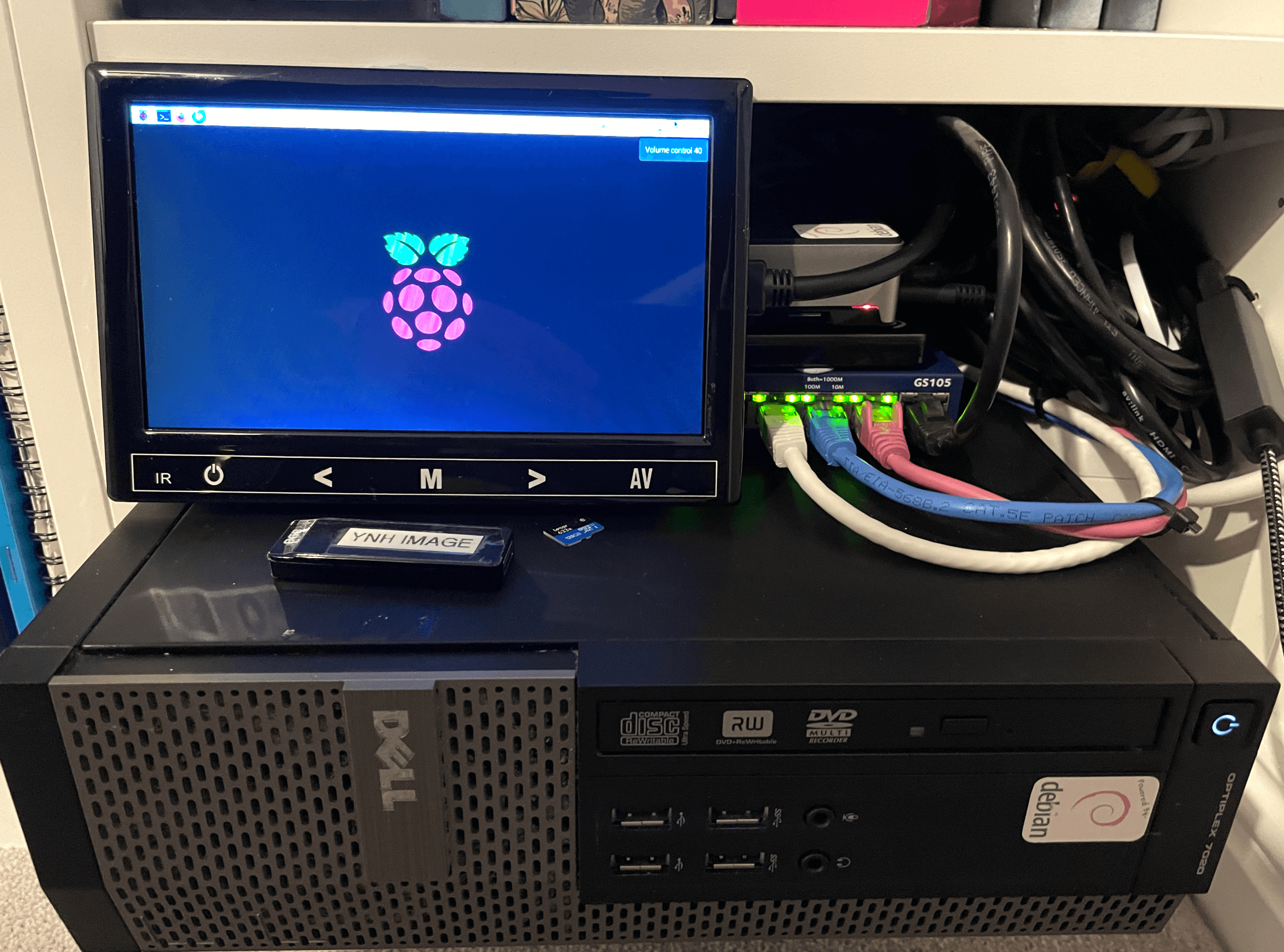
My Yunohost Homelab
Have a look at my set-up at digitalcarnage.co.uk, and if you have any questions, do reach out
 Derek Jones